Mail Client Settings

Outlook Express SMTP Re-configuration
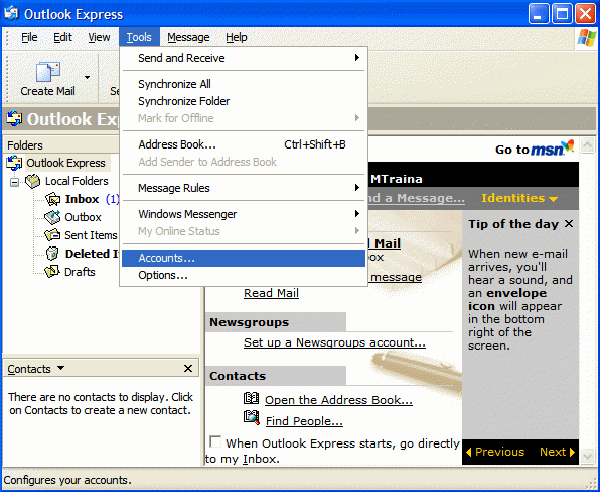
Step 1: Open Outlook Express, then click on the Tools drop menu and select Accounts.
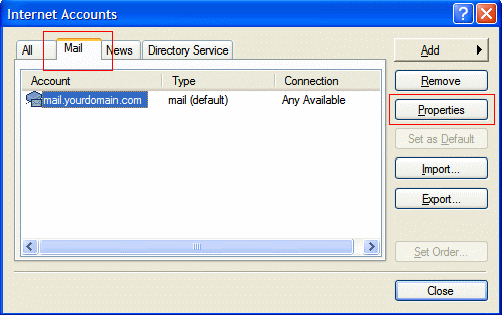
Step 2: The Internet Accounts dialog box will open. Click on the Mail tab (shown in red box in the upper left hand corner) then select your mail account (in this example it is listed as mail.yourdomain.com). Now click on the properties button (shown in red box on the right).
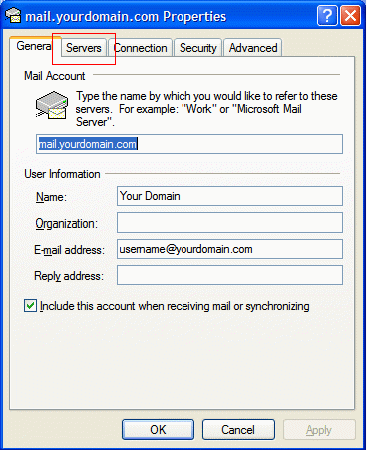
Step 3: The properties dialog box for your account will now open. Select the Servers tab (shown in red box).
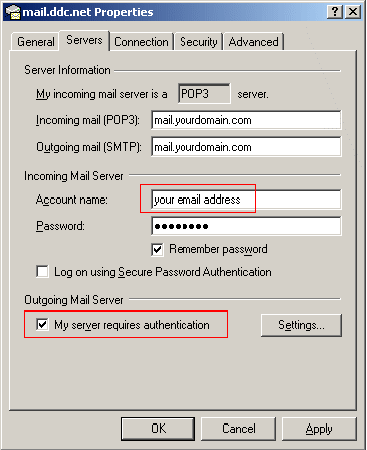
Step 4: You should now see the settings for the Servers tab. Make sure you enter your full email address in the “Account Name” box and check the “My server requires authentication” field. Now click on the Advanced tab in the upper right hand corner of the window.
Step 5: Once in the Advanced tab of the Account Settings dialog, change the Outgoing mail (SMTP) field setting from the default setting of 25, to 465
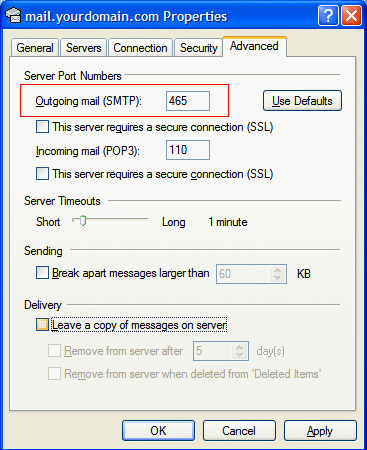
Step 6: Click on the Apply button at the bottom of the window and then select OK to return back to the main configuration dialog. Test the Send/Receive function to make sure everything is working properly.